

2.2. Supported Devices#
This section contains information on specific spectrometers supported by TII Spectrometry. For guidance on general use common to all supported devices, see Section 2.1.
Important
Not all spectrometers are supported on all platforms. For details, see Table 1.1.
2.2.1. Avenir Photonics#
TII Spectrometry supports the Avenir Photonics Aris (visible) and Siena (near-IR) spectrometers. In addition to the standard spectrometer settings, the following settings are available in the menu:
- LED
Toggles the spectrometer’s LED
- Auto
Activates auto-exposure mode
- External Trigger
Activates external triggering
- Gain
(Avenir Siena only) sets the gain
- NLIR
activates NLIR Spectrum upconverter support
In addition, the Burst Time-lapse Recording window contains the following settings:
- Data Format
Changes the data format of the spectrometer for higher throughput.
The default () has the highest resolution and fidelity. To increase the spectral acquisition rate and to avoid filling up the spectrometer’s internal buffer, a more compact data format ( or ) can be selected. The effect of this setting can be seen in Figure 2.15: When using the format (blue), the spectrometer buffer fills up after approximately 180 spectra and the spectral acquisition rate slows down from 250 Hz to 125 Hz. For the setting (red & green), the spectrometer can continuously operate at full speed.
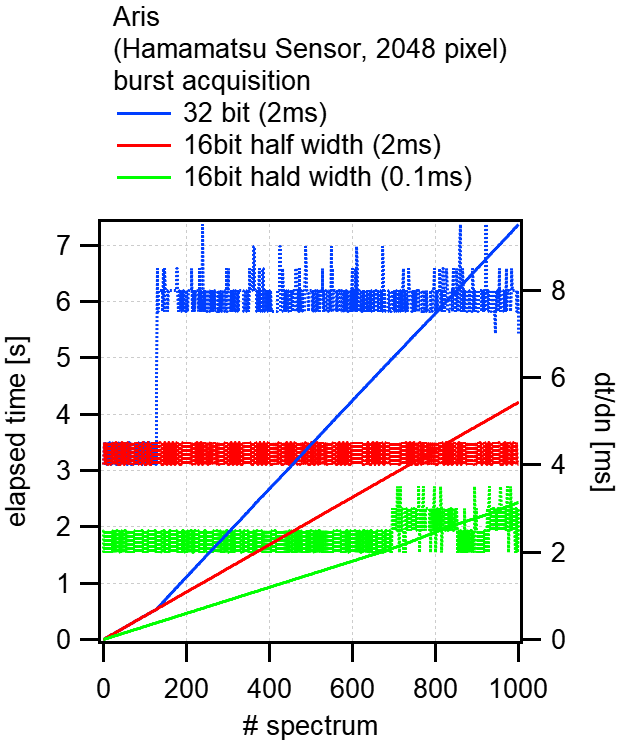
Fig. 2.15 Sustained spectral acquisition rate of an Avenir Aris spectrometer#
2.2.2. ARCoptix#
TII Spectrometry supports ARCoptix FTIR (FT-NIR and FT-MIR) spectrometers. Theses devices are based on a scanning Michelson interferometer and cover spectral ranges in the near and mid infra-red.
Note
ARCoptix spectrometers rely on a serverlet application that runs in the background. If the application is not already running, it will be started by TII Spectrometry. The initialization of this application as well as connection to and configuration of the spectrometer can take several 10s of seconds. In principle, connection to the serverlet application is also possible using over a network connection - see the section Remote Connections for details.
Important
Since the scan rate of the interferometer is fixed, no exposure time settings are available.
The menu contains the following options:
- Apodization
Selects an apodization function to remove high-frequency noise at the expense of a reduced spectral resolution
- Interferogram
Toggles the display of the raw interferogram data (bottom of Figure 2.16).
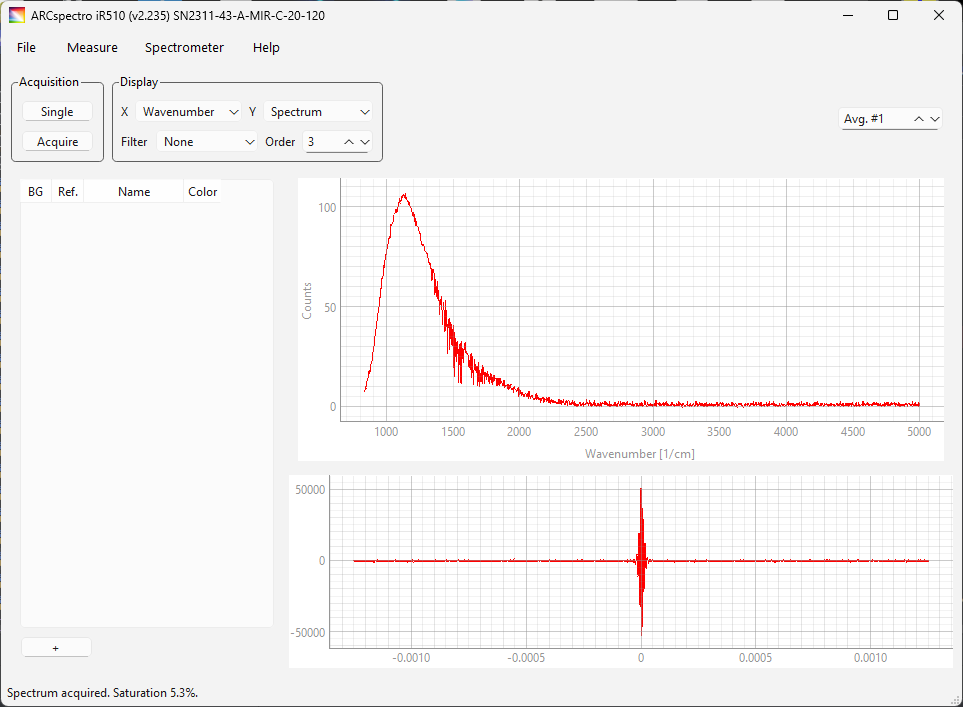
Fig. 2.16 The interferogram view#
See also
See Section 5.1 (Fast Fourier Transform (FFT) Applied to FTIR Data) for guidance on how to analyze interferogram data.
- Gain
Selects the gain of the spectrometer
- Resolution
Selects the spectral resolution in 1/m. Higher numbers increase the scan speed but lower the spectral resolution by decreasing the scan range of the interferometer (Figure 2.17).
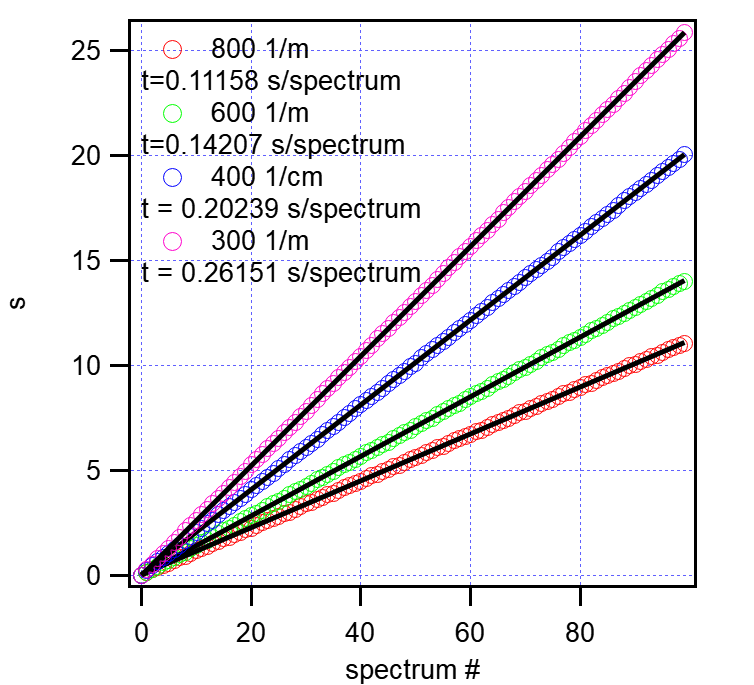
Fig. 2.17 Spectral acquisition rate vs resolution#
Warning
Changing the spectrometer resolution will reconfigure and disconnect the spectrometer from TII Spectrometry. To continue using the spectrometer, simply connect again.
2.2.2.1. Remote Connections#
Connections to the ARCoptix serverlet applications are possible over a network connection provided the computer running the serverlet application (‘host’) and the computer running TII Spectrometry (‘guest’) are part of the same subnet.
To establish a network connection:
on the host computer:
connect the spectrometer to a USB port
start the serverlet application:
on Windows, this is done by starting
AoDAQWin.exeon Linux, this is done by running
AoDAQ_**, where**indicates the suffix for the file version and operating system
Tip
Use
AoDAQWin.exe -h(on Windows) for help. It may be helpful to:run the application in verbose mode using
AoDAQWin.exe -vfor troubleshootingmanually set a port number for the TCP/IP connection using, e.g.
AoDAQWin.exe -p 4711
on the guest computer:
start TII Spectrometry
open the Device Manager using
enter the IP address and port number of the host computer and select the ARCoptix device in the Remote Spectrometers pane.
Tip
The default port number is
1424.click OK to establish the connection
Note
Remote and local spectrometers can be mixed - see Section 2.3 Using Multiple Spectrometers for details.
2.2.3. StellarNet#
TII Spectrometry supports StellarNet spectrometers. In addition to standard spectrometer settings, the following settings are available in the menu:
- X-Timing
Sets the X-timing
- Temperature Compensation
Toggles temperature compensation using dark pixels to increase spectrometer stability during long recordings.
- NLIR
activates NLIR Spectrum upconverter support
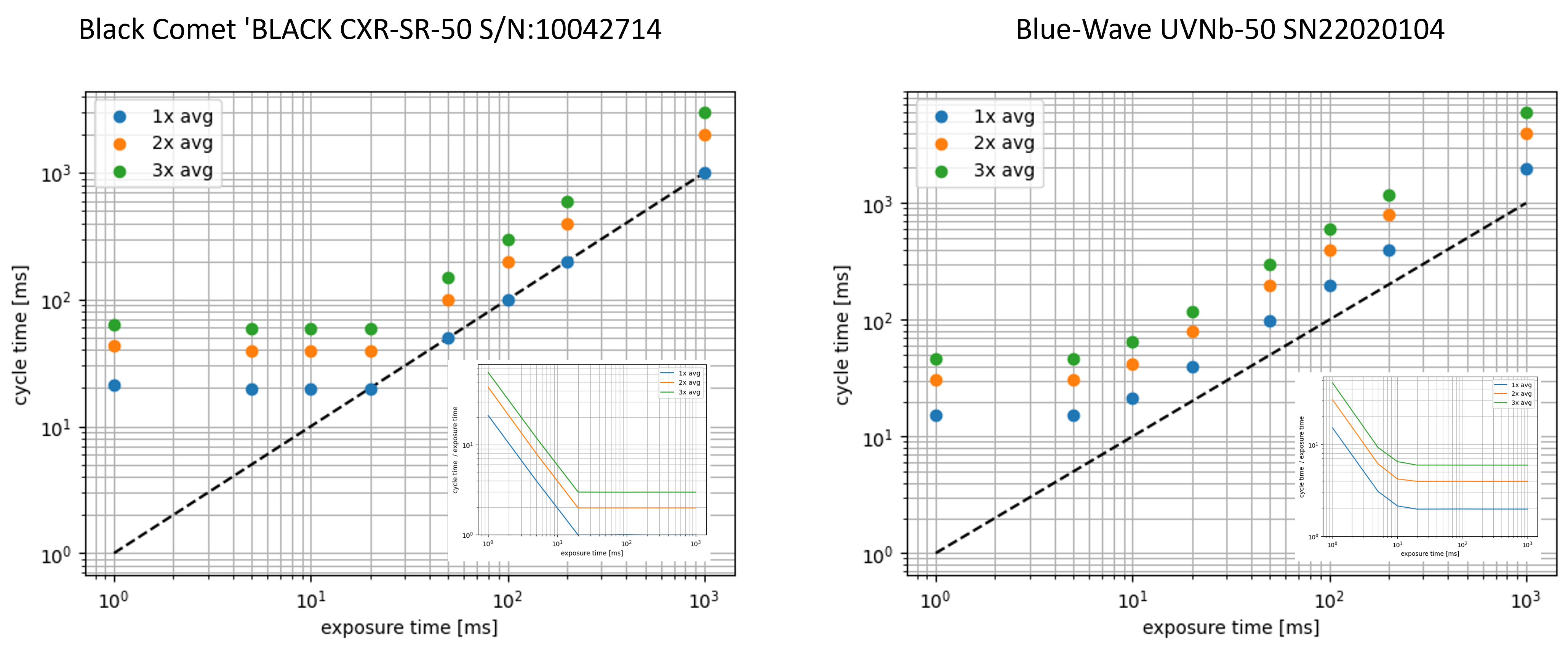
Fig. 2.18 StellarNet spectrometer timing#
2.2.4. NLIR Spectrum#
The NLIR Spectrum is a wavelength converter that uses sum-frequency generation (SFG) of a 1064 nm laser (\(\lambda_{\rm{pump}}\)) with mid-infrared light (\(\lambda_{\rm{MIR}}\)) in a non-linear crystal for spectral upconversion of the 1900-5300 nm mid-IR spectral range to the 682-886 nm visible range (\(\lambda_{\rm{NIR}}\)) (2.1).
This device can be connected to supported spectrometers for recording MIR spectra using a VIS-NIR device. The NLIR Spectrum is supported if the spectral range of the connected spectrometer includes the output range of the upconverter (682-886 nm). In this case, the menu will include the submenu.
- Use
Toggles spectral re-conversion using (2.1) solving for \(\lambda_{\rm{MIR}}\). The spectral axis will hence be in units of the original mid-IR light before upconversion.
- Crop
Removes the spectral region outside of the upconversion output range.
The effect of these two settings is displayed in Figure 2.19: The bottom axis shows the wavelength of the upconverted spectrum, the top axis shows the wavelength of the original light before upconversion. The green region marks the spectral range of the wavelength converter - spectra will be cropped to this region if Crop is enabled.
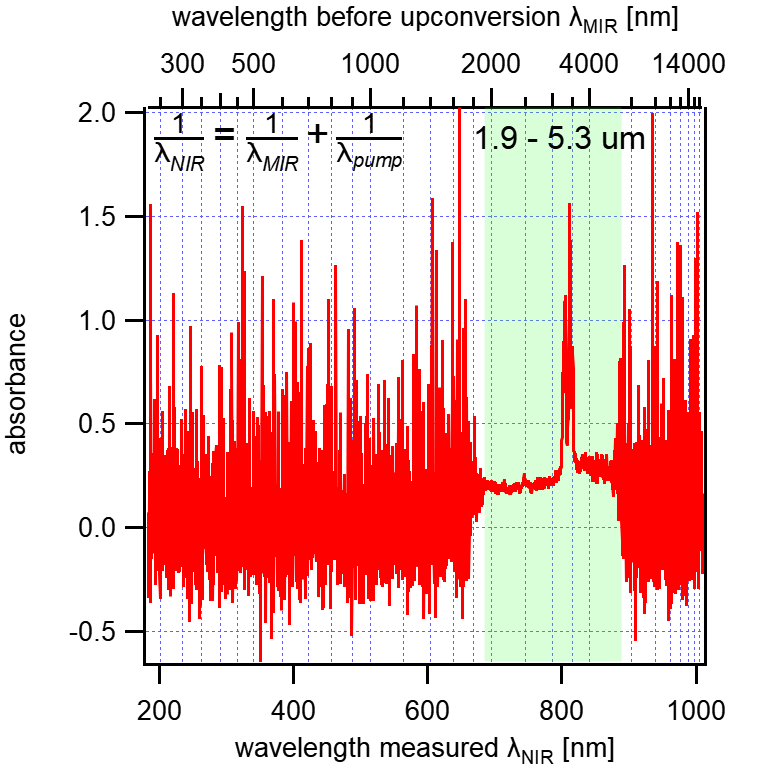
Fig. 2.19 Spectral output of the NLIR Spectrum wavelength converter#
2.2.5. NLIR Midwave#
The NLIR Midwave is a combination of NLIR spectral upconverter and spectrometer. In addition to standard spectrometer settings, this device also allows external triggering, which can be activated using . The trigger edge (rising or falling) can be selected using . Spectra are automatically re-converted to the MIR range.