

5.3. Configurations#
A configuration file stores the acquisition settings, registered spectra and background, and the state of the web dashboard, access point and plot regions, as a single file. Saving one makes it possible to return to a known setup - a specific sample, a calibration, an optical configuration - without repeating every setting by hand, and to hand a ready-to-use setup to an untrained operator. Automatic loading fo configuration files allows hands-free formation or remote monitoring networks.
5.3.1. Saving a Configuration#
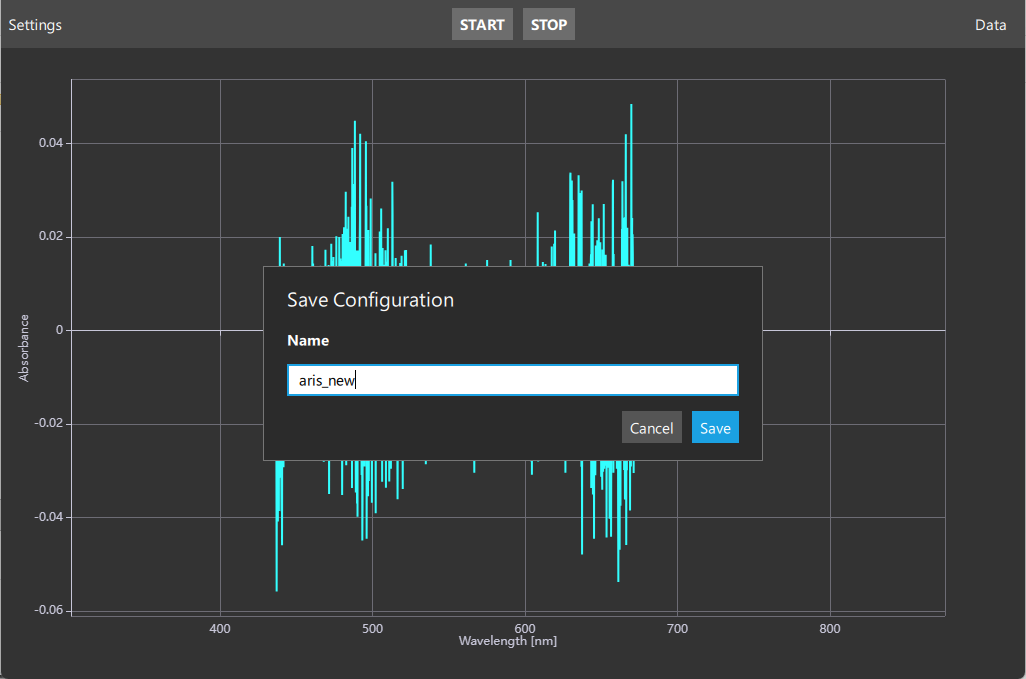
Fig. 5.8 The TII Spectrometry Touch Save Configuration Dialogue#
Save Configuration in the Data drawer opens the save dialogue (Figure 5.8), pre-filled with the name of the currently loaded configuration. Enter a name and press Save.
Note
Saving under a name that is already used by another saved configuration replaces it, after asking for confirmation, and is written safely: a power loss part-way through saving cannot leave a corrupted or half-written file behind.
Two kinds of configurations live side by side in the same folder:
- Saved configurations
created from the device itself using Save Configuration, or copied in over the network. These can be freely renamed, replaced or deleted.
- Factory configurations
provided in a separate
Factorysubfolder, typically an intensity calibration for a specific optical setup (fiber-coupled vs. free-space, for example). Save Configuration refuses a name that is already used by a factory configuration, so it can never be accidentally overwritten from the device; loading one and saving it under its suggested name instead creates an editable<name> (copy).
Both are reachable from the Connection Dialogue’s
Recent Configurations list or its Browse Config… button, which opens the
Configurations folder of the shared folder - the same
place a factory configuration is installed or updated from over the network, with no need to
access the device directly.
5.3.2. Configuration File Format#
A configuration is a .json file with a spectrometers list (one entry per connected
spectrometer, holding its acquisition settings, filter, registered spectra and background) and a
common section for everything that is not specific to a single device:
Key |
Description |
|---|---|
|
Whether the web dashboard is switched on |
|
Whether the device’s Wi-Fi access point is switched on |
|
The name of the reference spectrum that is active, if any |
|
The regions of interest shown in the plot, as a list of |
|
The plot’s zoom regions, per device |
Loading a configuration applies all of this - including switching the web dashboard and access point on or off - in one step. A configuration without one of these keys (an older file, or one saved from the desktop application) simply leaves that particular setting as it currently is.
TII Spectrometry Touch can also be started directly with a configuration already loaded, bypassing the Connection Dialogue, using the following command line options:
Option |
Description |
|---|---|
|
Path to the configuration file to load on startup |
|
Skip the Connection Dialogue and load the configuration given by |