

5.4. Network & Sharing#
TII Spectrometry Touch can be reached over the network in several independent ways, all switched on and off from the same Data drawer:
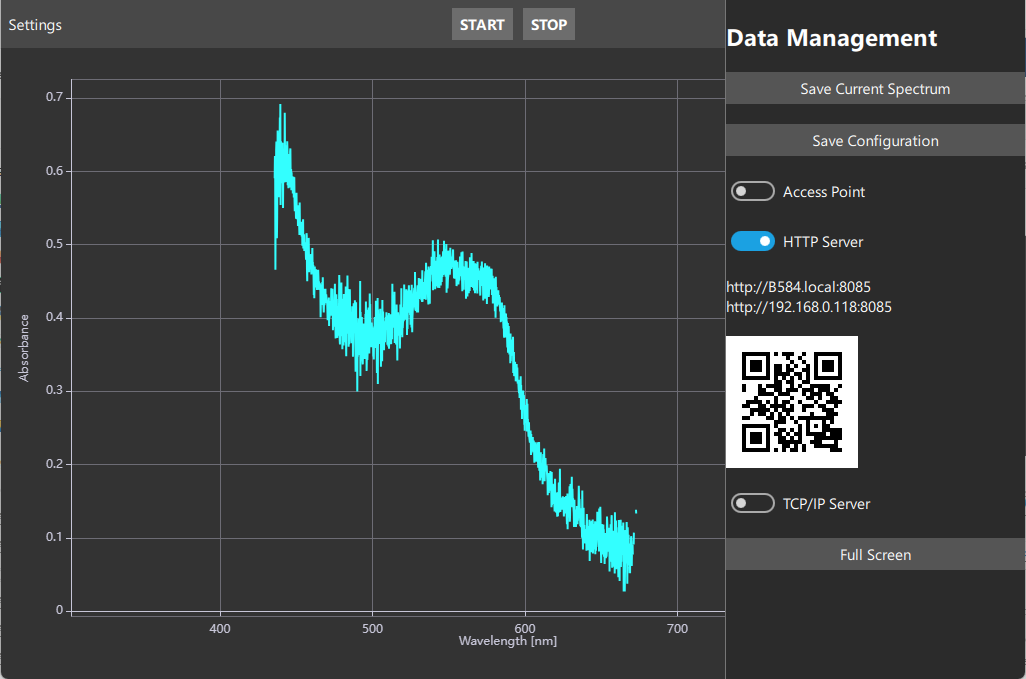
Fig. 5.9 The TII Spectrometry Touch Data Sidebar#
5.4.1. Access Point#
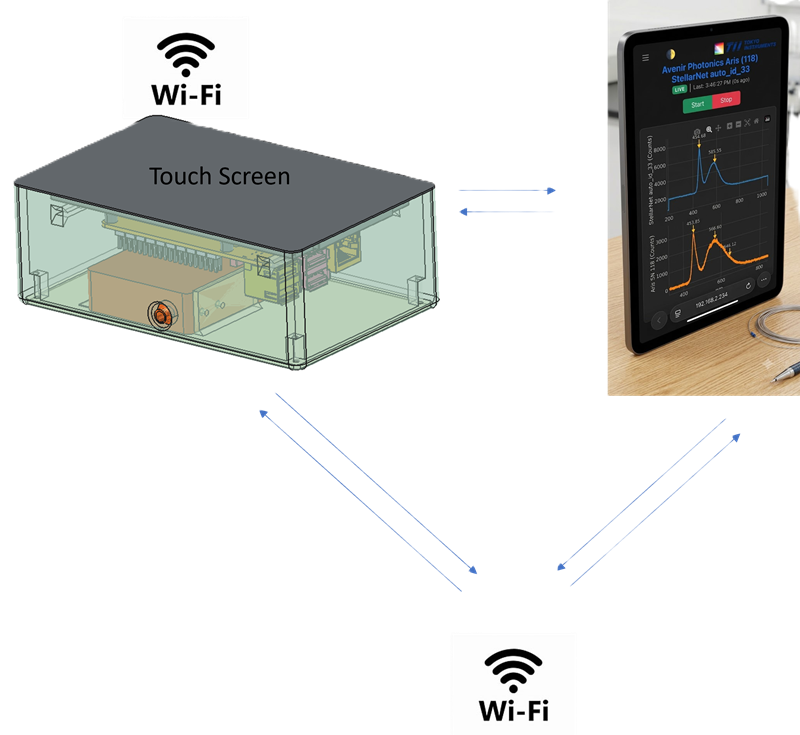
Fig. 5.10 Access Point Mode#
Switching on Access Point turns the device into its own Wi-Fi network (Figure 5.10), so a phone, tablet or laptop can connect to it directly - without any existing Wi-Fi infrastructure, router, or network administrator involved. This is the simplest way to reach the web dashboard in the field.
Important
The access point and an existing Wi-Fi network cannot normally be used by the device’s radio at the same time. Switch it off to rejoin the regular network (for example, to reach the shared folder from a computer already on that network).
Important
The default password is tiispectrometry. For convenience, use the displayed barcode to connect.
5.4.3. TCP/IP Server#
Switching on TCP/IP Server starts the same remote-control server used by the full application: a laboratory computer running TII Spectrometry can connect to it and acquire from TII Spectrometry Touch as if the spectrometer were directly attached, using the address shown once the switch is on. See TCP/IP Server for the protocol and client details.
5.4.4. Web Dashboard#
Switching on HTTP Server starts a lightweight web dashboard and shows its address and a QR code to open it directly from a phone or tablet camera:
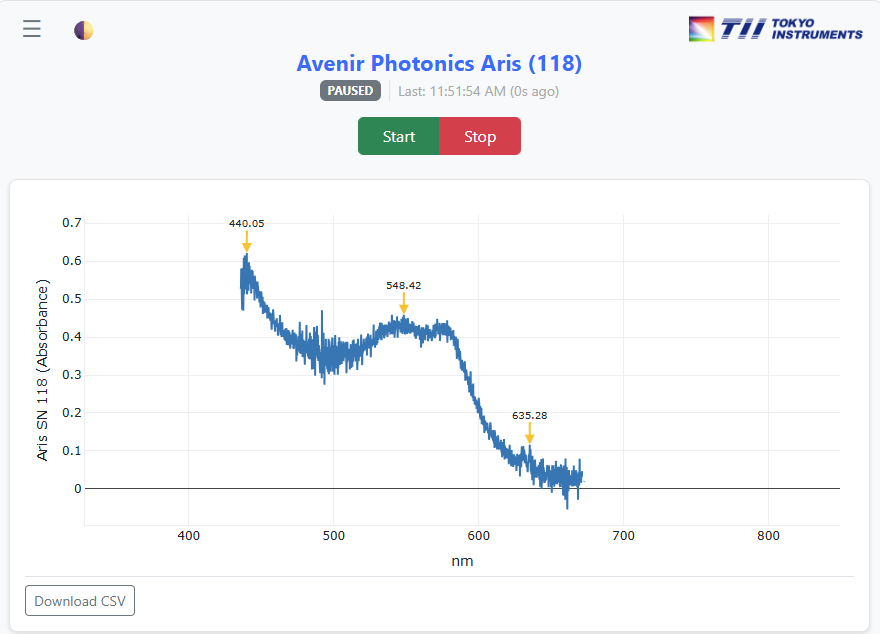
Fig. 5.11 The TII Spectrometry Touch Web Dashboard#
This is the same dashboard used by the full application - live spectra, background/reference
recording, region-of-interest metrics and .csv export, from any device with a browser and no
software of its own to install. See HTML Webserver for a full description of its
features.
Important
The spectrometer is a shared resource: every connected client can change its acquisition settings, and changes made on the device itself are reflected on every connected dashboard.